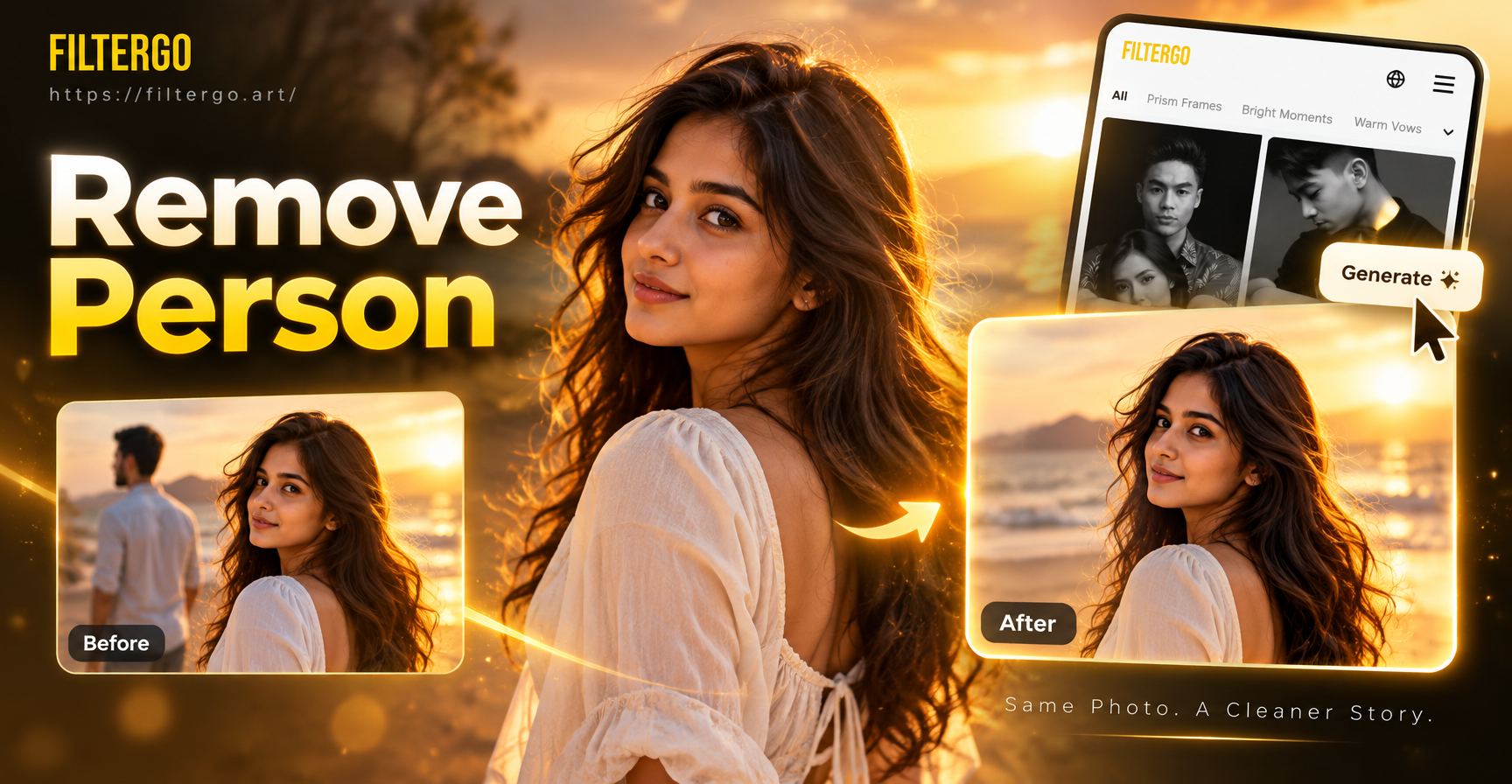
Removing someone from a picture used to require expensive software and careful manual editing. Today, built in smartphone tools, free desktop editors, and AI powered apps can do most of the work for you. Whether you want to erase a photobomber, delete an ex from a group shot, or clean up a background for a professional profile, this guide walks you through the most practical methods step by step.
Why You Might Need to Remove Someone From a Picture
There are many everyday reasons to remove a person from a photo. You may want to use a travel photo as a profile picture but a stranger is in the background. A group shot may include someone who asked to be excluded. A real estate or product photo may look better without people. In each case, the goal is the same: make the edit look natural without leaving smudges, ghost outlines, or mismatched textures.
The right approach depends on the photo itself. Busy backgrounds, overlapping bodies, and harsh shadows require different tools than a simple person in an empty frame. Start with the easiest built in options, then move to dedicated editors when you need more control.
Option 1: Use Your Phone's Built In Object Eraser
Most modern phones now include an object removal feature right in the Photos app. This is the fastest way to remove someone from a picture when the background is not too complex.
Google Photos Magic Eraser
If you use a Google Pixel or have a Google One subscription, Magic Eraser is available inside Google Photos. Open the photo, tap Edit, then Tools, and select Magic Eraser. The app will automatically detect possible distractions, including people. Tap the person you want to remove, and the tool will fill the area with surrounding pixels. You can also circle the person manually if the detection does not catch them. For best results, zoom in and refine the selection before applying.
Samsung Galaxy Object Eraser
On Samsung Galaxy devices, open the Gallery app and choose the photo. Tap the edit icon, then the three dot menu, and select Object Eraser. Draw over the person with your finger, and the phone will replace the area. Work slowly around the edges, and do not include too much background in your selection. Samsung's tool is especially good at removing small background figures with clean edges.
iPhone Clean Up in Photos
For iPhone users running recent iOS versions, the Photos app includes a Clean Up tool. Open the image, tap Edit, and choose Clean Up. Tap or brush over the person you want to remove. The tool uses on device intelligence to analyze the area and blend the background. If the result looks patchy, try a slightly larger or smaller selection. You can also use the auto detected suggestions if the app highlights people automatically.
Option 2: Use a Free Desktop Editor for More Control
When phone erasers leave visible artifacts, a desktop program gives you more precision. Many free options include healing, cloning, and content aware fill tools.
Photopea or Canva
Photopea is a free browser based editor that works like Photoshop. Open your photo, use the Lasso tool to select the person, then go to Edit and choose Fill. Set the fill type to Content Aware and click OK. The program will replace the selected area with nearby texture. In Canva, use the Magic Eraser tool if available with your plan. Upload the photo, select Edit Photo, and brush over the person. Canva works well for simple backgrounds and small figures.
GIMP Clone and Heal Tools
GIMP is a free desktop image editor. Use the Heal tool or Clone tool to manually sample a clean area and paint over the person. Hold Ctrl and click on a source area close to the person, then paint in short strokes. Keep resampling often to match texture, lighting, and scale. This method takes longer but gives excellent results on textured backgrounds like grass, sand, or brick walls.
Option 3: Use a Dedicated AI Removal App
Several specialized apps focus on object and person removal. These tools often produce smoother blends than general editors because they are trained on large image datasets. Upload the photo, mark the unwanted person, and let the app process the image. Some apps also offer batch removal and automatic shadow detection.
When choosing an AI removal app, look for a clear before and after preview, a manual brush size adjustment, and the ability to undo or refine the result. Avoid apps that automatically crop or change the photo resolution without asking. Read the privacy policy before uploading private images, especially if the photo contains family members or personal locations.
How to Remove Someone From a Group Photo
Group photos are trickier because people often overlap or stand close together. First, identify the exact boundary of the person you want to remove. Use a selection tool that lets you draw around the person's head, shoulders, and body without cutting into the person next to them. If you are using an AI eraser, zoom in and brush in small strokes along the edges. After the initial removal, inspect the gap between the remaining people. The background may need manual healing to fill the space naturally. If the person was standing in front of another person, you may need to reconstruct part of the person behind them using a clone or heal tool.
How to Handle Shadows, Reflections, and Complex Backgrounds
Shadows are often the most visible sign an object was removed. If the person cast a shadow on the ground or wall, remove or soften the shadow as a separate step. On a flat surface like pavement, use a healing brush to blend the shadow into the surrounding area. In a photo with reflections, such as a window or mirror, the reflection may still show the person. Remove the reflection using the same tools, but keep the reflection slightly softer and less detailed than the main subject to look realistic.
For complex backgrounds with repeating patterns like tiles, bricks, or foliage, a one click removal often creates visible repeats. Instead, use multiple small edits and resample from different areas so the texture does not look copied. If the person was in front of a straight line, such as a wall edge or fence, follow the direction of the line while healing to keep it continuous.
How to Get a Clean Result When Removing Someone
The key to a natural edit is matching the surrounding area. After the initial removal, zoom in to 100 percent and inspect the spot. Look for repeated patterns, blurry patches, leftover outlines, or color mismatches. Use a healing brush or clone tool to fix small problems. If the background has a straight line, follow the line direction while painting.
For photos where the person overlaps another subject, make a precise selection around the visible edge of the person. Do not include parts of the subject you want to keep. If the AI tool removes too much, undo and try a smaller selection. Multiple small edits often look better than one large removal.
What to Do After You Remove Someone
Once the unwanted person is gone, you may want to improve the overall look of the photo. This is where AI style and enhancement tools can help. After cleaning up the image with a dedicated eraser, you can use an app like filtergo to apply a consistent style, adjust color tones, or generate a new background from a text description. For example, if the original background looked dull, you can first erase the person with a precise removal tool, then use filtergo's image to image features to restyle the entire photo while preserving the remaining subjects. This two step workflow gives you full control over the cleanup and a polished final result.
Common Mistakes to Avoid
- Using too large a brush can remove background details and create smudges. Always start small and expand only if needed.
- Ignoring shadows is a common error. If the person cast a visible shadow, remove or soften the shadow as a separate step.
- Relying on one click tools for complex backgrounds often leads to repeated textures. Manual touch ups are still important.
- Saving over the original photo prevents you from going back. Always keep a copy of the original file before editing.
- Skipping the privacy review is risky when using online tools. Understand how the app stores and processes your image.
Final Verdict
Removing someone from a picture is no longer a task reserved for professional editors. Phone tools handle quick fixes, free desktop programs offer precise control, and dedicated AI apps can deliver fast, natural results. The best method depends on your photo's background complexity and how much time you want to spend. Start with the easiest built in option, then refine with a healing or clone tool. After the person is gone, use AI style tools like filtergo to make the final image look clean and consistent.