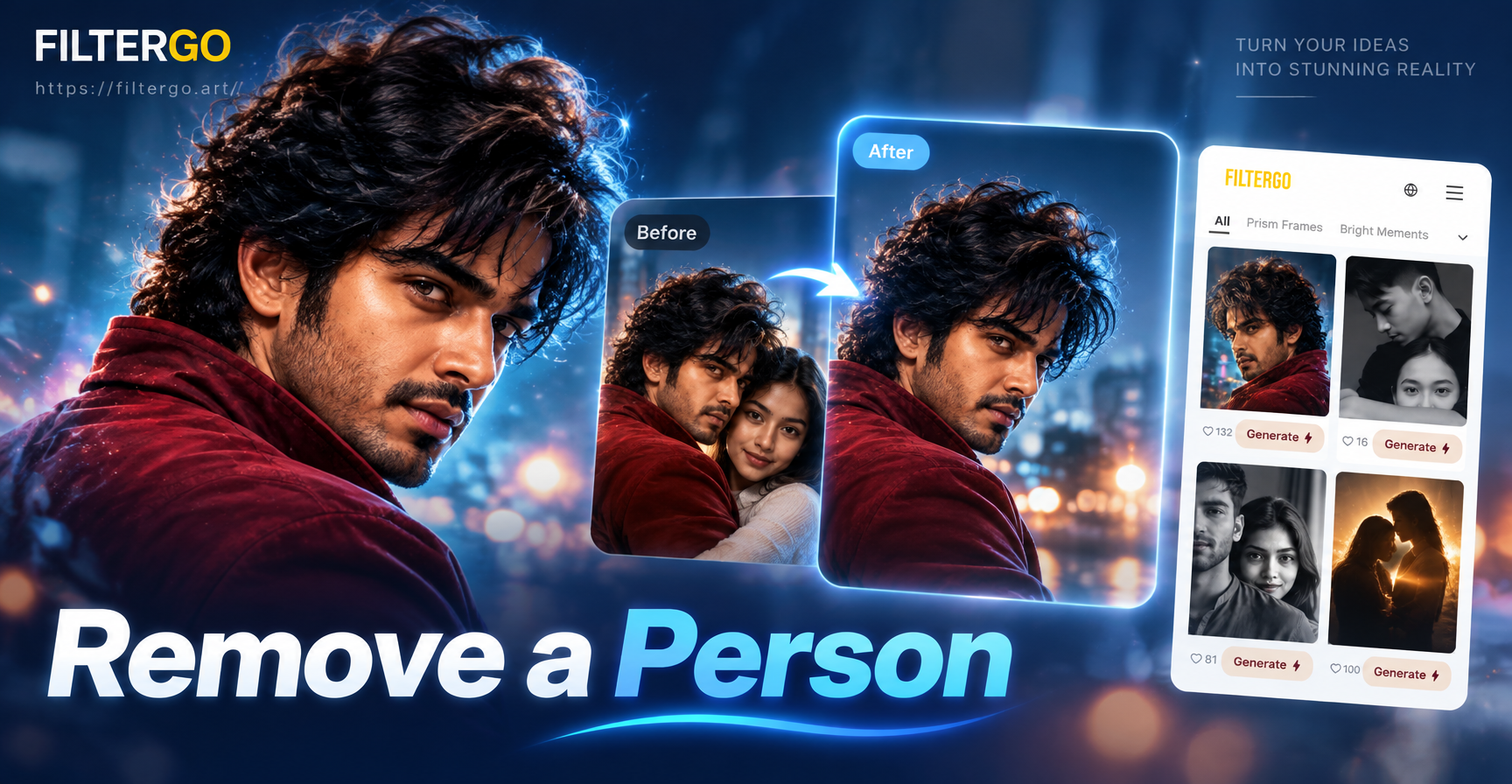
If you have a photo with an unwanted person in the background or foreground, you can remove them using a few different techniques. The best method depends on how large the person is, how busy the background is, and how clean you need the final image to look. You can crop the person out, use manual healing and cloning tools, or use AI powered image editing to regenerate the area without the person. Mobile apps such as filtergo offer image to image editing that can make this process faster when you do not have desktop software.
Why Remove a Person From a Photo?
People sometimes need to remove a person from a photo for many reasons. A photobomb may ruin a family portrait, an ex partner may appear in an otherwise favorite memory, or a stranger may walk through the background of a travel shot. You might also need a clean product photo without a model, or a professional headshot without a colleague in the frame. Removing a person can restore the focus to the main subject and make the image usable for social media, printing, or a profile picture.
Option 1 Crop or Reframe the Photo
The simplest way to remove a person from a photo is to crop them out. This works best when the person is near the edge of the frame and the remaining subject still looks balanced. Open the photo in any editing app, select the crop tool, and drag the edges until the unwanted person is outside the frame. After cropping, check the composition. If the main subject is too close to the edge, you may need to adjust the position or use a different method. Cropping is fast and does not require any AI, but it can reduce resolution and may not work for central subjects.
Option 2 Manual Healing and Clone Stamp Tools
Manual retouching is a good option when the unwanted person covers a simple background such as a wall, sky, or sand. Tools like the healing brush, clone stamp, and patch tool let you sample pixels from one area and paint them over the person. Start by zooming in on the person. Use a small brush to sample a clean area near the person, then paint over the body. Work in short strokes and resample often to avoid obvious repeating patterns. This method gives you fine control, but it can be time consuming for busy backgrounds and requires patience to avoid visible smudges.
Option 3 AI Powered Removal and Inpainting
AI image editing has made it much easier to remove a person from a photo. Instead of manually copying pixels, the AI analyzes the surrounding scene and generates new pixels that match the lighting, texture, and perspective. This process is often called inpainting or generative fill. You tell the AI what to remove and what the background should look like, and it fills the area with a realistic replacement. AI removal works well on patterned backgrounds, complex scenes, and areas with shadows or reflections.
How AI Removal Works
AI models are trained on millions of images, so they can predict what a missing area should look like. When you upload a photo and mark the person or describe them in a prompt, the model finds the boundaries of the unwanted object and replaces it with content that fits the scene. The result is usually much faster than manual cloning, and it can handle scenes that would be difficult to repair by hand.
Using filtergo for AI Removal
filtergo is a mobile AI design tool that supports image to image editing. You can upload a photo, choose a style if needed, and enter a prompt that describes the same scene without the unwanted person. The app then regenerates the image based on your instruction. This is a practical way to remove a person when you are working on a phone and do not want to use desktop software. The app is available on Google Play, so you can start from your mobile device.
Step by Step Method Using filtergo
Follow these steps to remove a person from a photo with filtergo.
- Download filtergo from Google Play and open the app.
- Tap the image to image option and upload the photo that contains the unwanted person.
- Choose a style template if you want to preserve a specific look, or keep the original style for a natural result.
- Enter a clear prompt that describes the same photo without the person. For example, "Remove the man in the red jacket on the left and keep the street, buildings, and natural lighting the same."
- Generate the result and check the area where the person was. If there are remaining fragments or a strange texture, change the prompt and generate again.
- Save the final image to your phone or share it directly from the app.
Prompt Examples for Clean Removal
When using AI tools, a specific prompt can greatly improve the result. Try these examples based on your photo:
- "Remove the person standing behind the bride and keep the garden background, flowers, and soft sunlight unchanged."
- "Erase the blurry tourist in the lower right corner of the beach photo and keep the ocean, sand texture, and sky consistent."
- "Replace the man in the blue shirt on the bench with an empty bench, keep the same park lighting and fence."
- "Take out the stranger in the doorway and rebuild the door, wall, and shadow without changing the main subject."
- "Remove the person photobombing the left side and extend the background naturally, keep the color grading and sharpness."
Change the details to match your photo. The more precise you are about the location, the person's appearance, and the surrounding scene, the better the AI result will be.
Common Mistakes and How to Fix Them
Removing a person does not always work perfectly on the first try. One common mistake is using a prompt that is too broad. Instead of saying "remove the person," say "remove the person in the green hat on the right side" or specify the area. Another mistake is ignoring shadows and reflections. If the person cast a shadow on the ground, the AI may leave a dark patch. Add a phrase such as "also remove the shadow" to the prompt. If the background is highly detailed, such as a crowd or a patterned wall, the AI may struggle. In that case, generate a few versions and choose the cleanest one, then use a manual healing tool for small fixes.
When Manual Editing Works Better Than AI
AI removal is powerful, but manual editing still has advantages. If the unwanted person overlaps an important object with precise edges, such as a hand, a logo, or text, manual cloning may give you more control. If the photo has a very small area to fix, the healing brush is often faster than waiting for an AI generation. You can also combine both methods. Start with AI removal to handle the large area, then use a healing or clone tool to clean up any small artifacts left behind.
Frequently Asked Questions
Can I remove a person from a photo without Photoshop?
Yes. Mobile apps like filtergo allow you to use AI image editing to remove or replace unwanted people without any desktop software. You can upload the photo, enter a prompt, and generate a clean version in minutes.
Does AI removal always look natural?
It depends on the photo. AI removal usually looks natural when the background is relatively simple and the person is not covering a complex object. For very busy scenes, you may need to generate more than once or combine AI with manual healing.
Is it legal to remove someone from a photo?
In most cases, removing someone from a personal photo for your own use is fine. However, if you plan to publish or sell the image, consider the context and any consent or privacy concerns. Do not use edited photos to misrepresent facts or harm someone.
What should I do if the AI leaves a ghost shadow?
Add a specific instruction to your prompt, such as "remove the person and their shadow completely." You can also use a manual healing tool to clean the remaining shadow after the AI generation.
How do I choose between cropping and AI removal?
Choose cropping when the person is near the edge and you can cut them out without hurting the composition. Choose AI removal when the person is close to the main subject, the background is detailed, or you want to keep the original framing.
Conclusion
Removing a person from a photo is no longer a task that requires expensive software or advanced editing skills. You can crop, use manual healing tools, or use AI powered image editing to clean up your photo quickly. If you want a mobile friendly option, download filtergo from Google Play and try the image to image workflow described above. With a clear prompt and a little experimentation, you can turn an otherwise ruined shot into a clean, shareable image.