What Does It Mean to Add Animation in Video?
Adding animation in video means introducing movement, visual effects, or animated elements into a clip that was originally still or without motion. You can animate a fixed photo so a person blinks, smiles, or turns their head. You can also add animated text, cartoon filters, or motion graphics to a live action video. The goal is to make the video more engaging, expressive, and worth sharing. This guide explains how to add animation in video using simple tools and AI powered methods that work on a phone.
Why Add Animation to Video?
Animation helps videos stand out in crowded feeds and keeps viewers watching longer. A moving image catches the eye faster than a static one, and it can communicate emotion more clearly. For creators, small animation effects can turn an ordinary photo into a mini story. For businesses, animated overlays and motion graphics can make product demos and social ads feel more polished. With modern AI tools, you do not need to learn complex timeline software to get professional looking results.
Common Ways to Add Animation in Video
Traditional Timeline Animation
In professional editing tools, animators place objects on separate layers and use keyframes to change position, scale, opacity, and rotation over time. This approach gives precise control, but it requires time and technical skill. You have to understand timelines, easing, and layer masks. If you edit on a phone, a full timeline workflow can feel slow and frustrating.
AI Powered Image to Video Animation
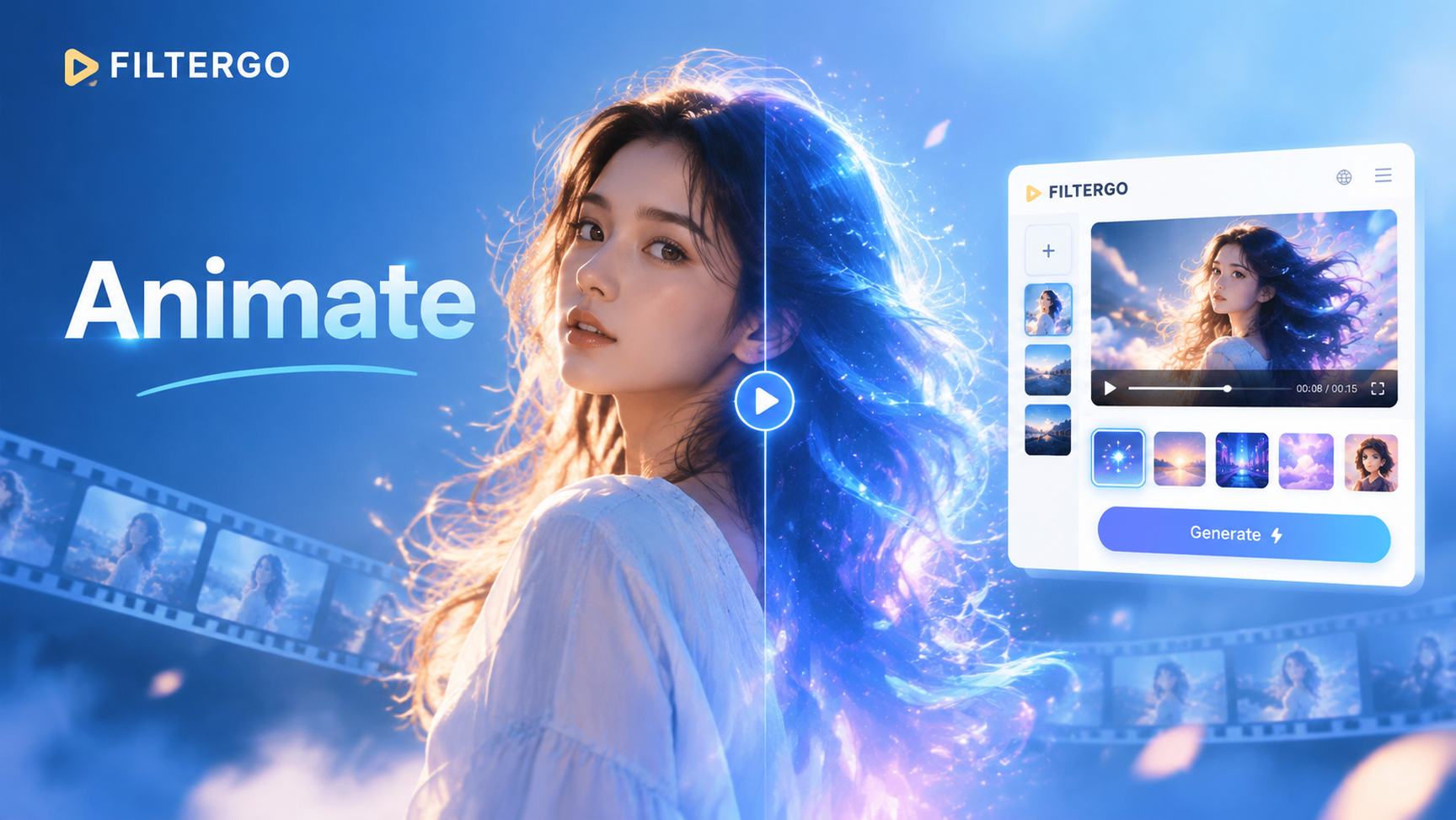
AI powered animation is much faster. You upload a still photo or a short clip, choose a style or type a motion prompt, and the AI generates movement automatically. filtergo offers this through its image to video and text to video features. You can animate faces, add natural gestures, or turn a landscape into a moving scene without manual keyframing. This method is ideal for social media creators, small business owners, and anyone who wants quick results.
Text and Graphic Overlay Animation
Another common method is adding animated text, stickers, or graphic overlays on top of a video. This can be done in most editing apps and is useful for captions, titles, lower thirds, and callouts. When combined with AI generated clips, animated overlays can make the final video feel more complete and branded.
How to Add Animation in Video with filtergo
If you want a beginner friendly workflow, filtergo is a practical choice. It is a mobile app on Google Play that combines text to image, image to image, text to video, and image to video tools. You can animate a static photo, apply cartoon or anime filters, or generate a short animated scene from a text description. Here is a simple process.
- Download and open filtergo. Install the app from Google Play and open a new project.
- Choose a photo or video. Upload a still image if you want to animate it, or select an existing video if you want to add animated effects.
- Pick a style or enter a motion prompt. Browse the style library or type a description like make the water move gently or turn this portrait into a soft cartoon animation.
- Generate and save. Tap generate, preview the animated result, and save it to your phone or share it directly.
Even without advanced editing skills, the AI handles the complex parts so you can focus on the creative direction.
Creative Ideas for Adding Animation to Videos
Animate Still Photos
Turning a still photo into a moving image is one of the most popular animation techniques. You can make a person blink, smile, or look in a different direction. This works well for portraits, family photos, pet pictures, and travel snapshots. Use a clean, well lit photo for the best result, and keep the subject clear and centered.
Turn Sketches into Moving Scenes
If you have a drawing, painting, or sketch, you can use AI to bring it to life. The app can add gentle motion to clouds, water, leaves, or characters while keeping the original art style. This is a great way to showcase illustrations, comic panels, or storyboard ideas.
Add Cartoon or Anime Styles
Style transfer filters can make a real video look like a cartoon, anime, watercolor painting, or 3D clay animation. You can apply these styles to an entire clip or to a single image before animating it. This is especially popular for short form content where a distinctive look helps the video feel unique.
Example Prompts for AI Animation
Try these text prompts inside filtergo to guide the AI:
- Turn this portrait into a gentle smiling animation with soft natural light.
- Animate the lake so the water ripples slowly and the clouds drift left.
- Convert this sketch into a cozy animation with a cat blinking by the window.
- Apply a Ghibli style animation to this street photo and make the leaves sway.
- Make the person in this photo wave and look toward the camera.
Adjust the wording to match your photo and the mood you want. Short, clear descriptions usually produce better motion.
Tips for Better Animated Video Results
- Start with high quality input. Sharp, well lit photos and videos give the AI more detail to work with.
- Keep the subject clear. Avoid busy backgrounds when animating a person or object.
- Use specific motion prompts. Instead of saying make it move, describe exactly what should move and how fast.
- Test multiple styles. The same photo can look completely different with anime, cinematic, or watercolor filters.
- Keep clips short. A three to eight second animated loop often works better on social media than a long clip.
Common Mistakes to Avoid
- Overloading the prompt. Asking for too many movements at once can create chaotic results.
- Ignoring aspect ratio. Vertical video usually performs better on mobile platforms, while landscape works for YouTube.
- Using low resolution photos. Blurry input often leads to blurry animated output.
- Skipping previews. Small glitches can be fixed by adjusting the prompt or trying a different style.
- Forgetting sound. Even simple background music or sound effects can make an animated video feel more complete.
How to Add Animation in Video for Social Media
Social platforms reward motion, but each platform has different expectations. Vertical clips work best for TikTok, Instagram Reels, and YouTube Shorts. Square or landscape formats suit Facebook and YouTube. When creating animated content, keep the first second visually striking so viewers stop scrolling. You can add captions as animated text overlays to make the content accessible and keep attention even without sound. filtergo lets you generate a short animation and then trim or loop it for the platform you prefer.
Choosing the Right Animation Style for Your Project
The style you choose changes the mood of the video. A soft watercolor animation works well for personal memories and wedding content. A cartoon or anime style suits playful brand videos and fan edits. A cinematic style with natural motion works for travel clips and product teasers. If you are not sure, generate two or three versions with different filters and compare them side by side. The right choice often becomes obvious once you see the clips together.
Conclusion
Adding animation in video no longer requires expensive software or years of training. With AI tools like filtergo, you can turn a static photo into a moving clip, apply creative styles, and produce shareable animated videos in minutes. Start with a clear idea, choose the right input, and experiment with different motion prompts until you get the look you want.